

Last week I had the chance to give a talk at Global AI Barcelona on how anyone can set up their own AI chatbot locally, with no cloud services and without writing a single line of code. If you're interested in generative AI but want to keep full control of your data and avoid recurring costs, here's a summary of what I shared.
Why run an AI chatbot locally?
- Privacy: Your data never leaves your machine.
- Zero cost: No cloud services to pay for.
- Low latency: Instant responses, with no waiting on external servers.
- Flexibility: You choose which models to use and how to customize them.
The key tools
- Ollama: A lightweight runtime for running AI models locally.
- DeepSeek & Mistral: Efficient models that can run on modest hardware.
- Docker: To keep the setup simple.
- OpenUIWeb: A web interface for talking to your chatbot, no code required.
Steps to get it running
First test: chat in the server console
- Install Docker
I'm on a modest Windows laptop, so I use Docker Desktop to run everything I need in containers. - Download and run Ollama in Docker
Open a console (Windows + CMD) and run:docker run -d -v ollama:/root/.ollama -p 11434:11434 --name ollama ollama/ollama
- Download and run the model
docker exec -it ollama ollama run mistral
- Try the chatbot
Just ask it whatever you like!
Second test: a ChatGPT-style web interface
- Add a web interface
- Use Docker Compose to bring up Ollama + OpenUIWeb together.
- Save this as a docker-compose.yml file
services:
  ollama:
    image: 'ollama/ollama:latest'
    container_name: ollama
    restart: unless-stopped
    ports:
      - "11434:11434"
    volumes:
      - ./models:/root/.ollama
    networks:
      - ollama_network
  open-webui-ollama:
    image: 'ghcr.io/open-webui/open-webui:main'
    restart: always
    container_name: open-webui-ollama
    volumes:
      - './open-webui:/app/backend/data'
    extra_hosts:
      - 'host.docker.internal:host-gateway'
    ports:
      - '3333:8080'
    networks:
      - ollama_network
networks:
ollama_network:- Start the containers
- Open a console (Windows + CMD) and run:
docker exec -it ollama ollama run mistral
- Open a console (Windows + CMD) and run:
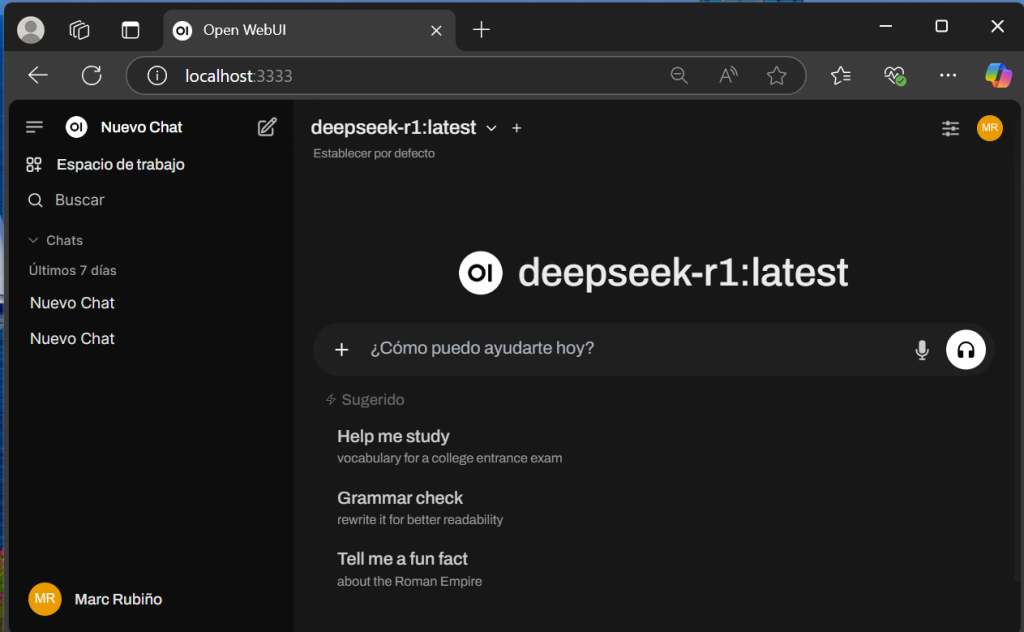
- Open the web interface
In your browser, go to:http://localhost:3333/ - Create the admin user
Set up your account and start chatting. - Enjoy!
This interface is fantastic: it's customizable and keeps your conversation history without ever leaving your computer.
TIP
If you want to try other models like DeepSeek, just pull them and you can use them from your chat. You can have as many models as your machine can handle! 😉
Open a console (Windows + CMD) and run: docker exec -it ollama ollama pull deepseek-R1
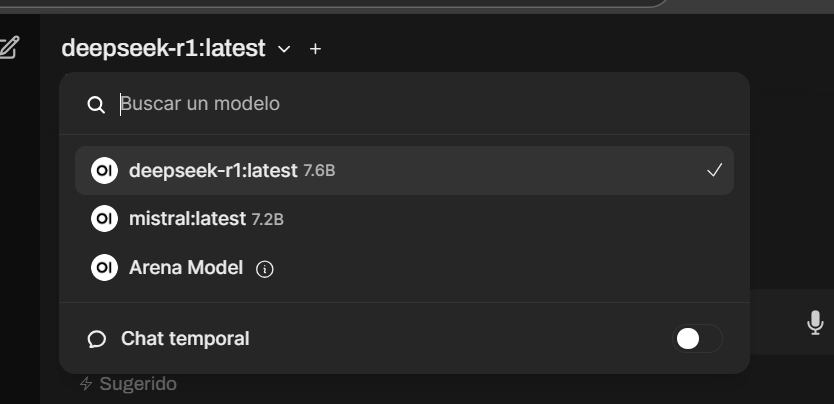
Combining Ollama + Mistral or DeepSeek gets you a working AI system in minutes, accessible from any browser.
If you'd like more content like this, leave me your feedback or tell me what other AI topics you'd like to see us explore in future editions.